Documentation

Salesforce Connector
For a general introduction to the connector, please refer to RheinInsights Salesforce Enterprise Search and RAG Connector.
Salesforce Configuration
Crawl User
The connector uses OAuth and a (technical) crawl user which has the following permissions:
Read access to all relevant content, which should be indexed
Permission to the respective restrictions and permissions
Read access to all users, groups and roles and their membership relationships
App Registration
Create an SSL Key Pair
openssl req -x509 -newkey rsa:2048 -nodes -days 730 \
  -keyout server.key -out server.crt -subj "/CN=rheininsights-salesforce-connector"
Please note that
server.crt is the public certificate and will be uploaded to Salesforce.
server.key stays with you;
leave it without a passphrase
make a note in your operations manual on how long the certificate is valid (730 days in this example)
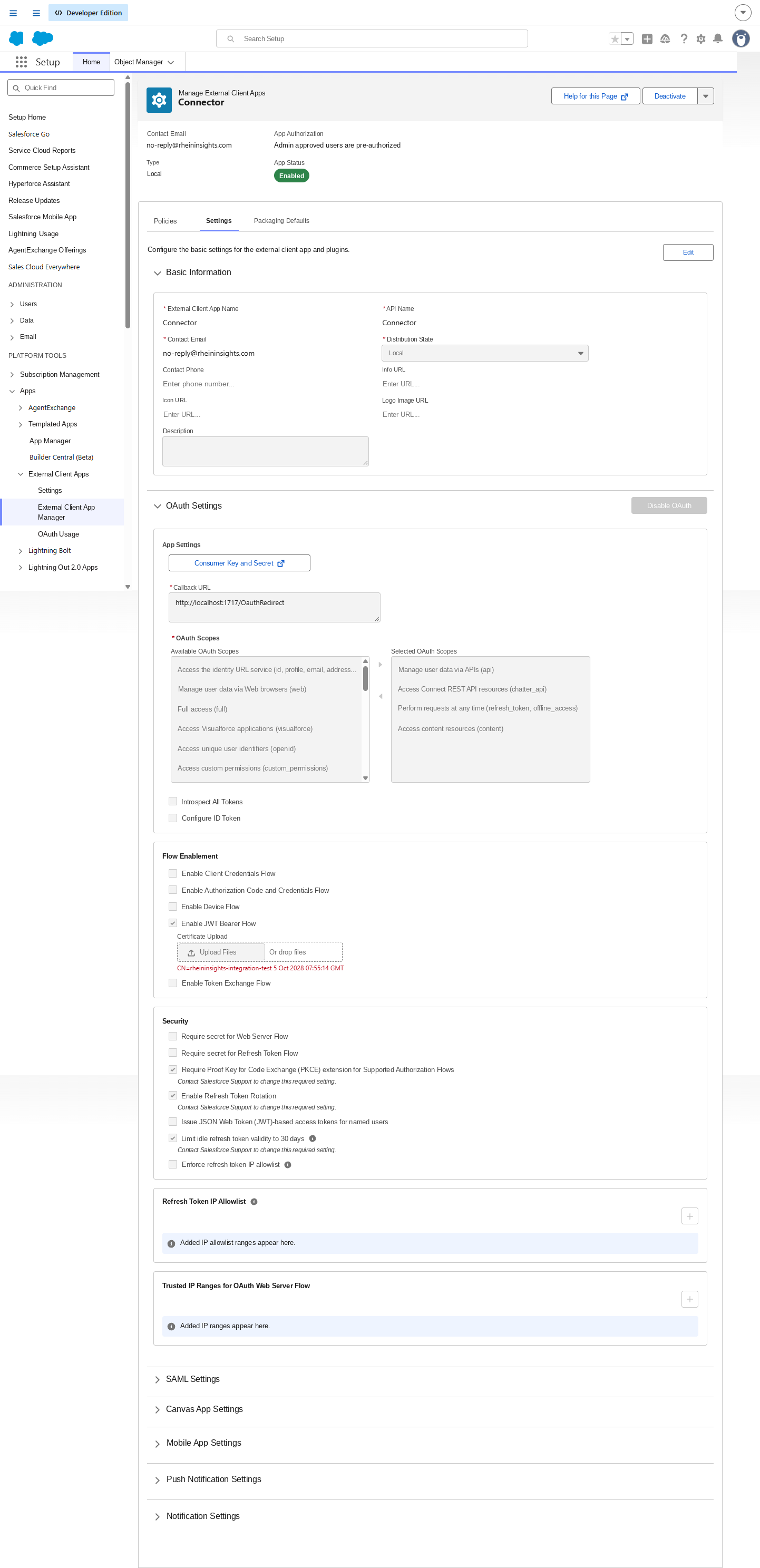
Create the app in Salesforce (Setup)
Click on the gearwheel and go to setup
Search for External Client App Manager and open it
Click on New external client app
Name: RheinInsights RAG Connector
Contact mail: no-reply@yourorganization.com
API Name: Connector
Distribution: Local
Enable OAuth.
Enter any callback URL, for example http://localhost:1717/OauthRedirect
Add the following OAuth scopes:
Manage user data via APIs (api) and
Perform requests at any time (refresh_token, offline_access).
Under Flow Enablement
check the box at Enable JWT Bearer Flow
Upload the public certificate “server.crt” from above
Save. In the app's Policies, set Permitted Users to Admin approved users are pre-authorized, then add the integration user's profile or a permission set assigned to that user.
Copy the Consumer Key from the OAuth settings.
Add the App Policy
In Setup, search for permission sets
Click on new.
Name it, for example, "RheinInsights RAG Connector"
Leave the license empty
Click save.
In the new permission set, open assigned connected apps or External Client App Access.
Click on edit
Add connector
Click manage assignments
Add assignments and pick your user
Link the permission set to the app
Go back to External Client App Manager → RheinInsights RAG Connector → Policies tab
Click edit.
In app policies with select permission sets:
Move RheinInsights RAG Connector to the right under permission sets
Click save.
Fetch the consumer key:
Also in External Client App Manager → RheinInsights RAG Connector
Open Settings
Expand OAuth settings and click consumer key and secret.
Salesforce sends a verification code to your e-mail address. Enter it.
Make a copy the consumer key, i.e. the one which starts with 3MVG.
Consumer secret can be ignored.
Content Source Configuration
The content source configuration of the connector comprises the following mandatory configuration fields.
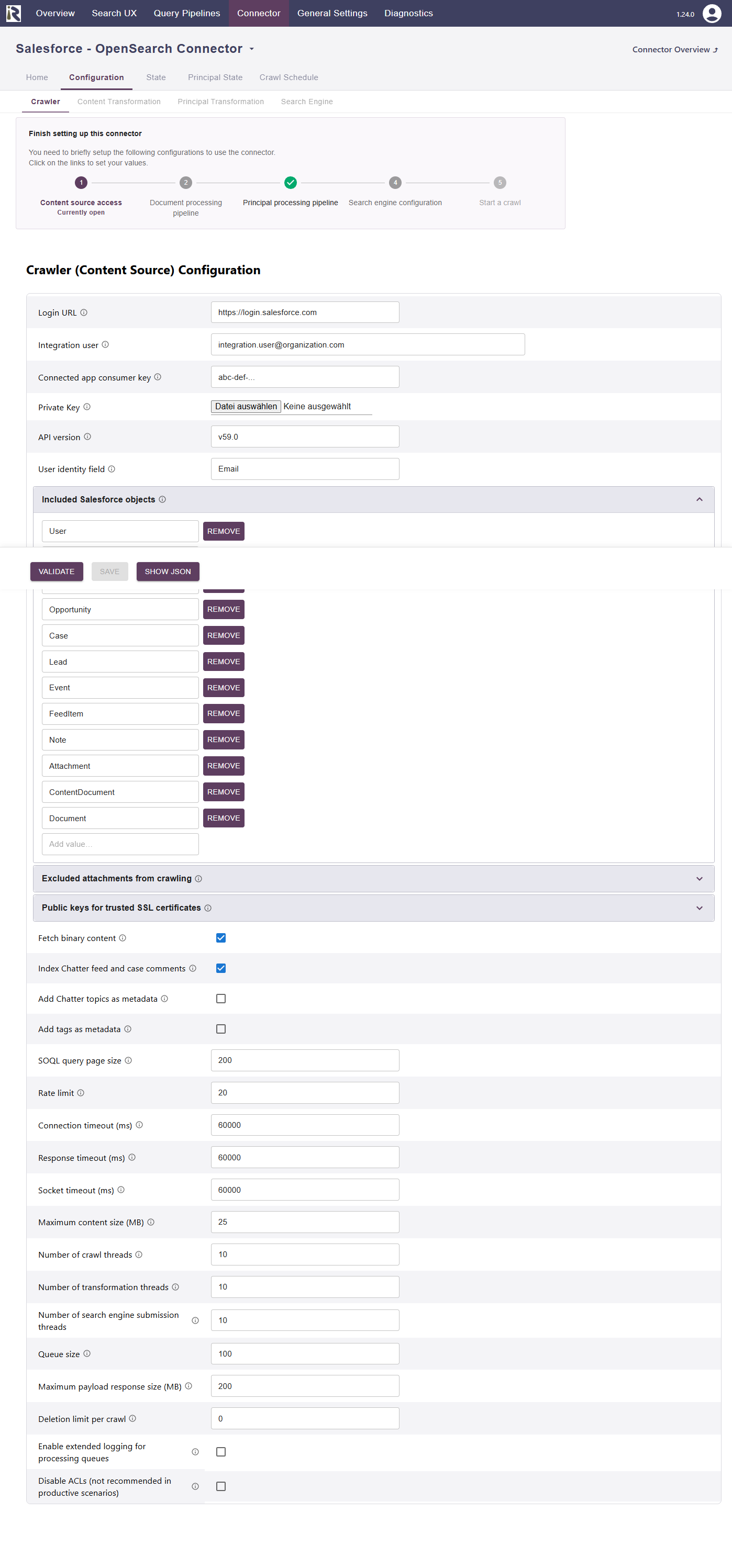
Login URL. This is the login url for your salesforce instance.
Integration user. This is the technical crawl user who is allowed to access the app which we configured above.
Connected app consumer key. This is the consumer key as was generated in the last steps above.
Private key. This is the private key which was generated above. It must fit the public key.
API version. This is the Salesforce API version used by the connector.
User identity field. This is the leading id field for the users. This is needed for security trimming reasons.
Included Salesforce objects. This is a non-empty list of objects which is needed for crawling purposes. If you need more or less object types, then you can add these here.
Excluded attachments from crawling: here you can add file extensions to filter documents which should not be sent to the search engine.
Fetch binary content. When enabled, the binary body of Documents, Attachments and ContentVersions is fetched and indexed. When disabled, only metadata is indexed for these.
Index Chatter feed and case comments. When enabled, comments on FeedItems and Cases are fetched and included in the indexed content.
Add Chatter topics as metadata. When enabled, Chatter topics assigned to a record are added as metadata.
Add tags as metadata. When enabled, tags assigned to a record are added as metadata.
SOQL query page size. Row limit or page size for the SOQL result sets.
Rate Limit. This will define a rate limiting for the connector, i.e., limit the number of API requests per second (across all threads).
Page size for requests. Defines how many pages will be fetched per API request. Default is 100.
Response timeout (ms). Defines how long the connector until an API call is aborted and the operation be marked as failed.
Connection timeout (ms). Defines how long the connector waits for a connection for an API call.
Socket timeout (ms). Defines how long the connector waits for receiving all data from an API call.
The general settings are described at General Crawl Settings and you can leave these with its default values.
After entering the configuration parameters, click on validate. This validates the content crawl configuration directly against the content source. If there are issues when connecting, the validator will indicate these on the page. Otherwise, you can save the configuration and continue with Content Transformation configuration.
Recommended Crawl Schedules
Salesforce offers a partially complete change log. Only deletions and some types of modifications are not delivered in there. This means, we recommend to configure
incremental crawls every 2-4 hours
full scans to run every 24 hours,
and full scan principal crawls can run twice a day.
For more information see Crawl Scheduling .