Documentation

Zammad Connector
For a general introduction to the connector, please refer to RheinInsights Zammad Enterprise Search and RAG Connector.
Zammad Configuration
The connector uses an Pesonal Access token or basic authentication to authenticate against the Zammad APIs.
Basic Authentication
When using basic authentication, a username and password is needed. The connector then authenticates using these credentials. A two-factor authentication must not be activated.
Please note that the connector user must be able to access the tickets and knowledge articles which should be indexed. Moreover, it must have read access to roles and users in your Zammad instance.
Personal Access Token
To create a token, please do the following. As an administrator or with the according permissions do the following
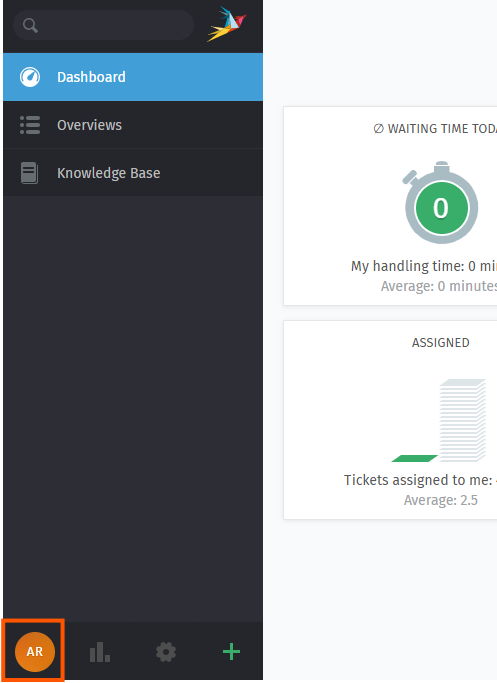
Click on your user profile icon
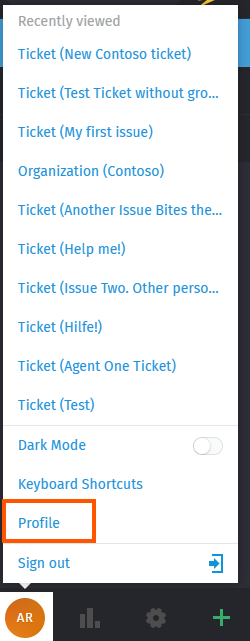
Open profile
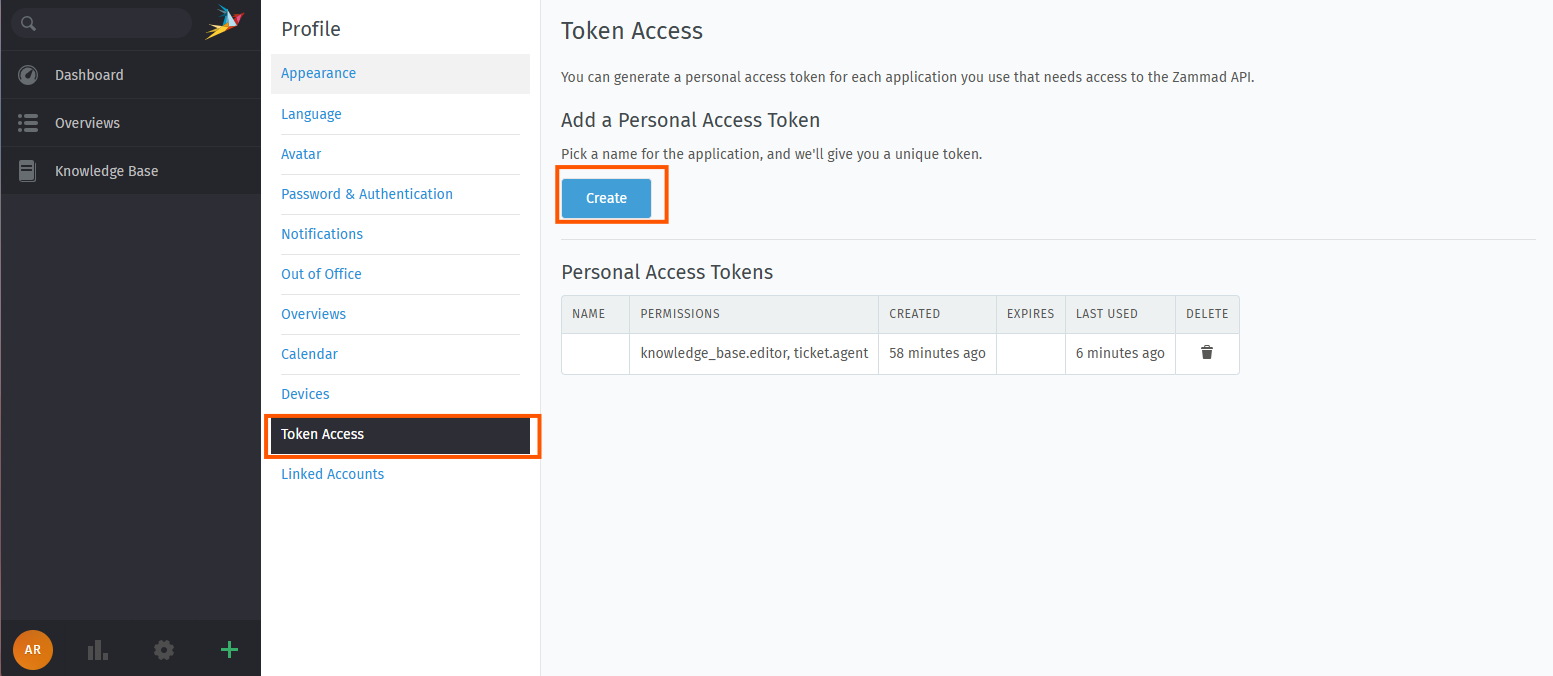
Click on token access
Click on create to create a new token
Give the token a descriptive name
Leave the expiration date empty or make a note of the expiration date
Add the following permissions:
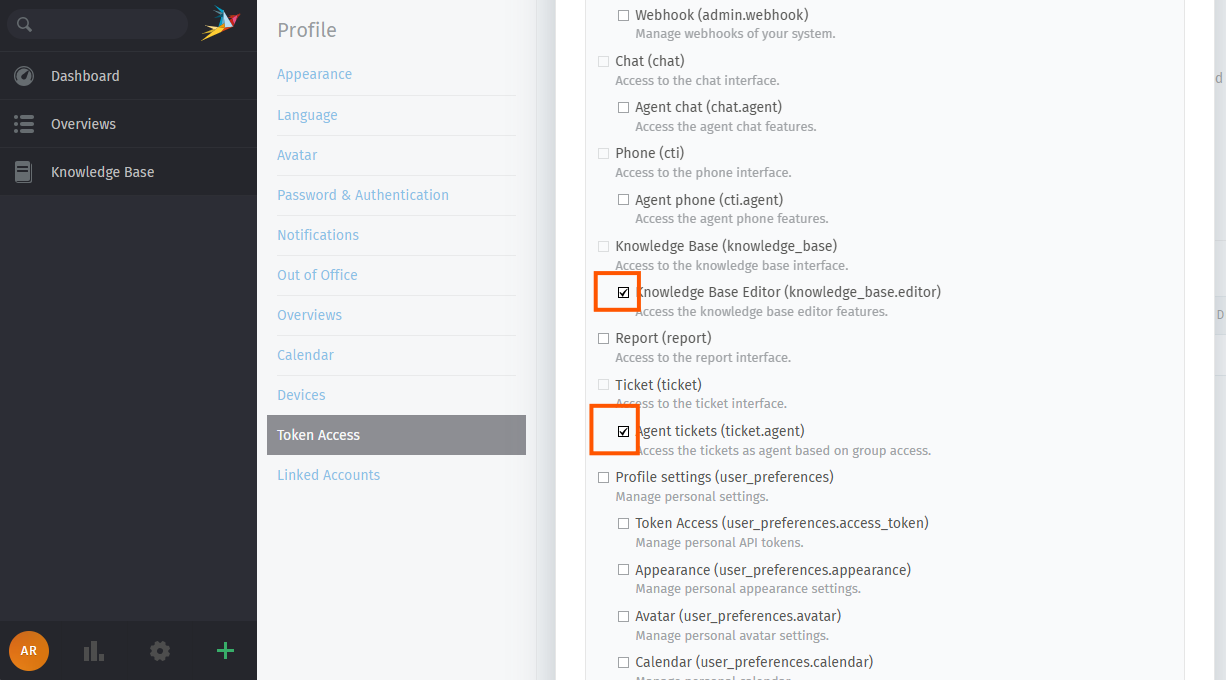
knowledge_base.editor
ticket.agent
admin.role (if needed)
admin.user (if needed)
Click on create
Copy the displayed token, as it is needed in the next step. Click on OK.
Content Source Configuration
The content source configuration of the connector comprises the following mandatory configuration fields.
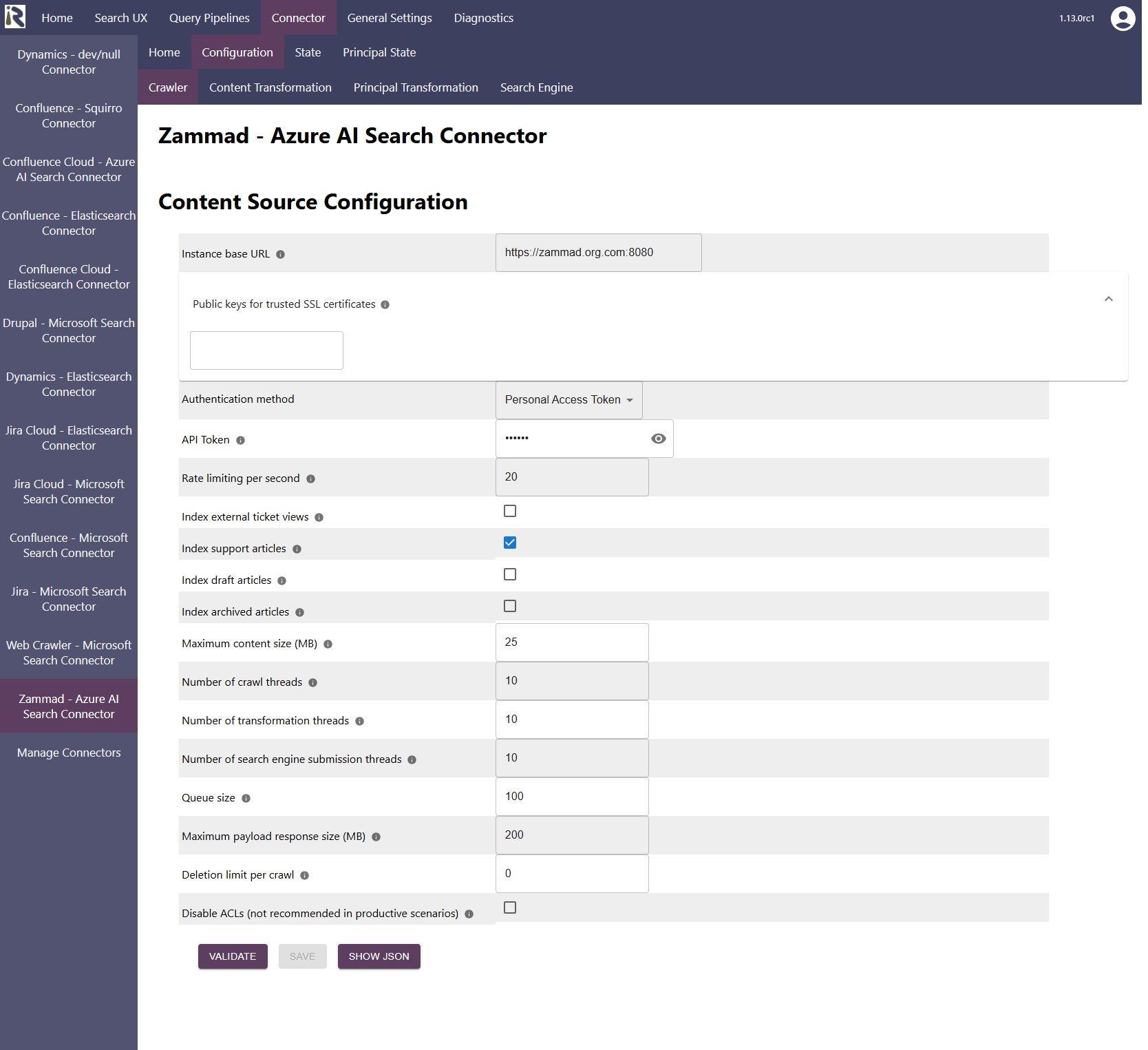
Within the connector’s configuration please add the following information:
Instance base url. Is the base url of your Zammad installation, it looks like https://zammad.org.com:<port>.
Public keys for SSL certificates: this configuration is needed, if you run the environment with self-signed certificates, or certificates which are not known to the Java key store.
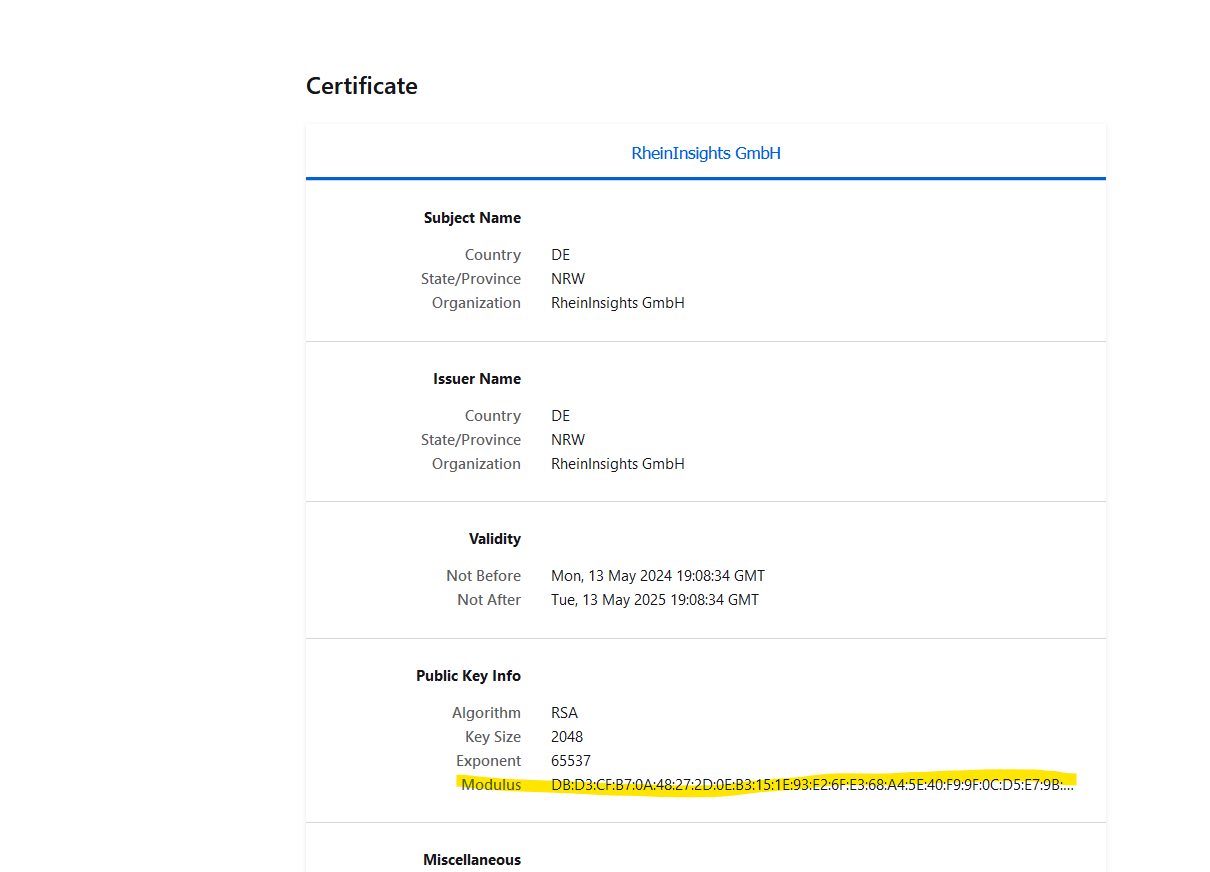
We use a straight-forward approach to validate SSL certificates. In order to render a certificate valid, add the modulus of the public key into this text field. You can access this modulus by viewing the certificate within the browser.
Authentication method. Here either choose personal access token or basic authentication.
(Basic authentication) Login of the crawl user for basic auth. See the section on basic auth as authentication above.
(Basic authentication) Password of the crawl user for basic auth. See the section on basic auth as authentication above.
(Personal access token) API Token. This is the API token from above.
Rate limiting per second: You can specify the number of API calls per second.
Index external ticket views.
If enabled, each ticket will be indexed twice. Once with the information an agent is allowed to see and ACLs for users with the according agent role and with the information the customer is allowed to see.
If this is disabled (default), only the agent view is indexed.Index articles. This will enable crawling articles.
Index draft articles. Enable this to index articles which are in draft state.
Index outdated articles. Enable this to index articles which are marked as being archived.
After entering the configuration parameters, click on validate. This validates the content crawl configuration directly against the content source. If there are issues when connecting, the validator will indicate these on the page. Otherwise, you can save the configuration and continue with Content Transformation configuration.
Recommended Crawl Schedules
Content Crawls
The connector supports incremental crawls. These are based on the information the API provides for tickets. This however does not include deleted items and also not new knowledge articles.
So the change log is incomplete and depending on your requirements, we recommend to run a Full Scan every day to detect new comments and issues as well as deleted items.
For more information see Crawl Scheduling .
Principal Crawls
Depending on your requirements, we recommend to run a Full Principal Scan every day or less often.
For more information see Crawl Scheduling .