Documentation

Open WebUI
Open WebUI is a an AI interface which is self hosted and can be extended to your needs. Your RheinInsights Retrieval Suite deployment can be integrated into Open WebUI as a search provider, for instance as a tool.
This way, your users will gain relevant answers through our query pipelines. In particular, our query pipelines can be queried in a way so that security trimming takes place. In turn, answers will always be only generated based on documents the users are allowed to see in the underlying knowledge sources.
Configuration
You can include the RheinInsights Retrieval Suite in Open WebUI as follows:
As an administrator open the admin panel
Click on Functions
Click on new function
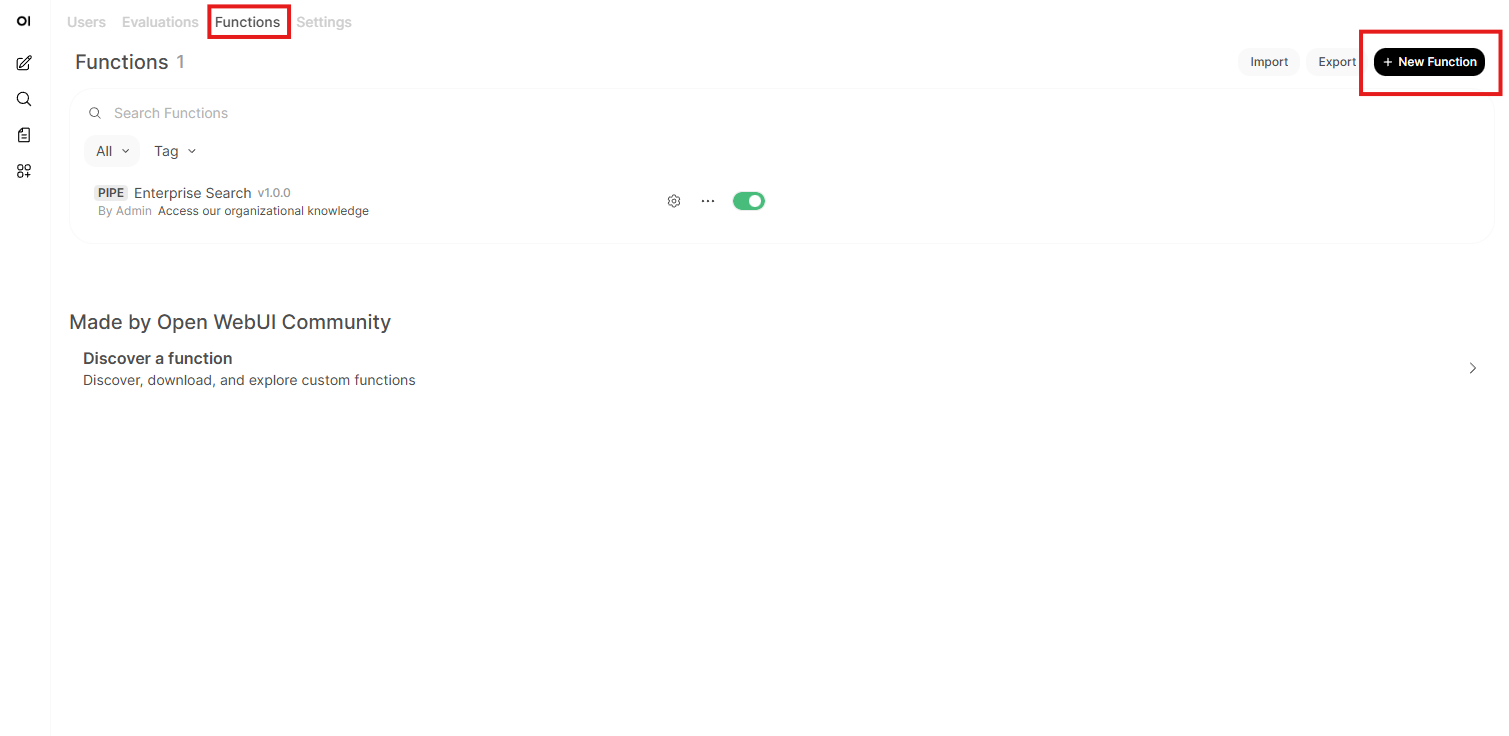
Click on new function (yes, a second time)
Give this function a reasonable name
Give the function a description
Copy and paste the python code from Open WebUI Enterprise Search Pipe or Open WebUI RAG Pipe into the field
Click on save
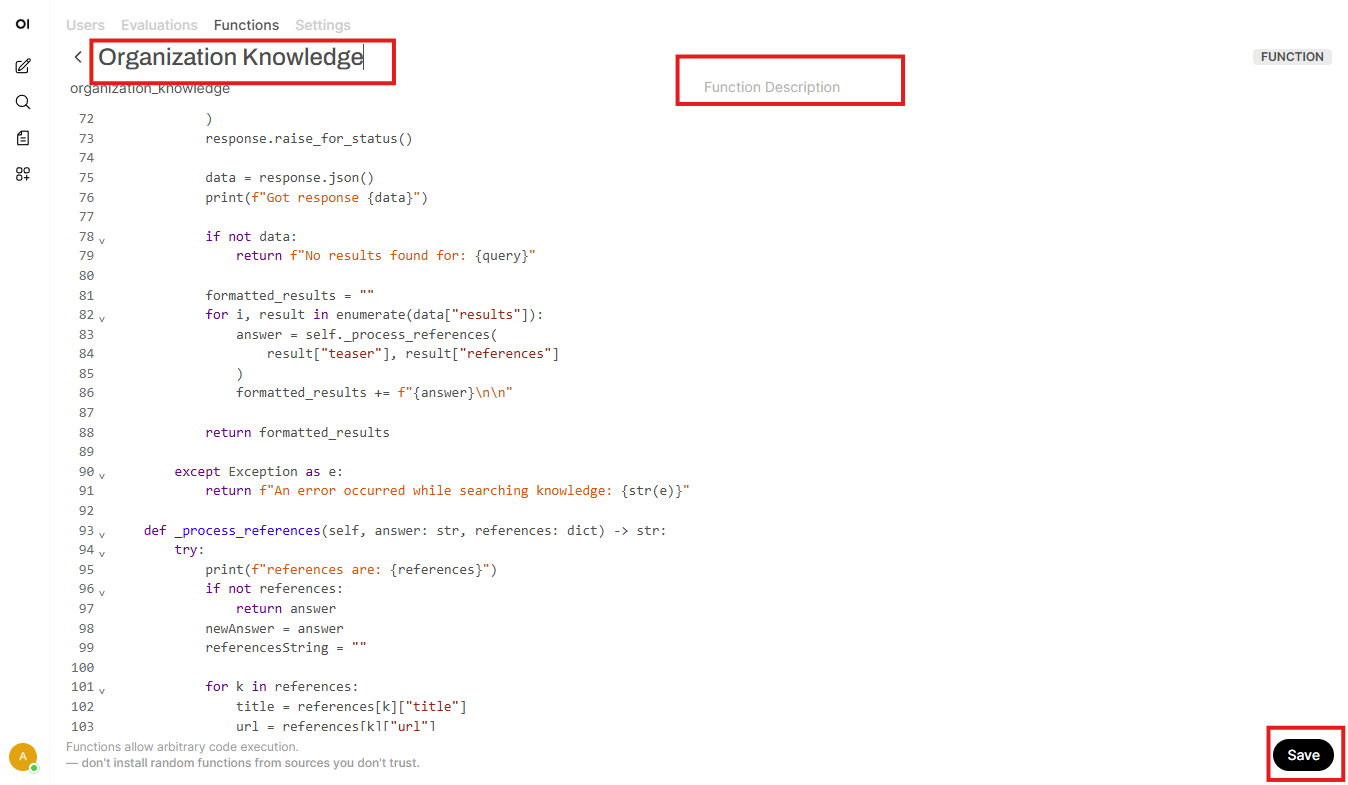
Click on confirm
Click on the function’s gear wheel

Fill in the following parameters
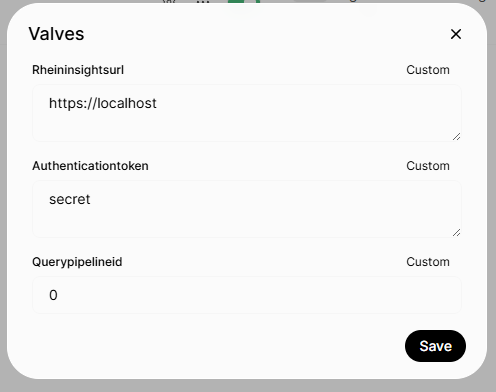
Rheininsightsurl: this should be the FQDN towards your RheinInsights Retrieval Suite deployment
Authenticationtoken: leave empty if you did not define a passkey. Otherwise provide this passkey here
The id of the query pipeline which should be used. P
For more information on how to configure query pipelines, see AI and Query Pipelines .
Please note that it must be configured for public access, see Query Pipeline - Access Configuration . Also, if you want to use secure search, you need to enable “Allow for ingesting userPrincipalName as part of the query” for this pipeline
Afterwards, activate the function by clicking on the checkbox

Click on settings
Open models
Open the menu of the new “model” by clicking on the three dots
-
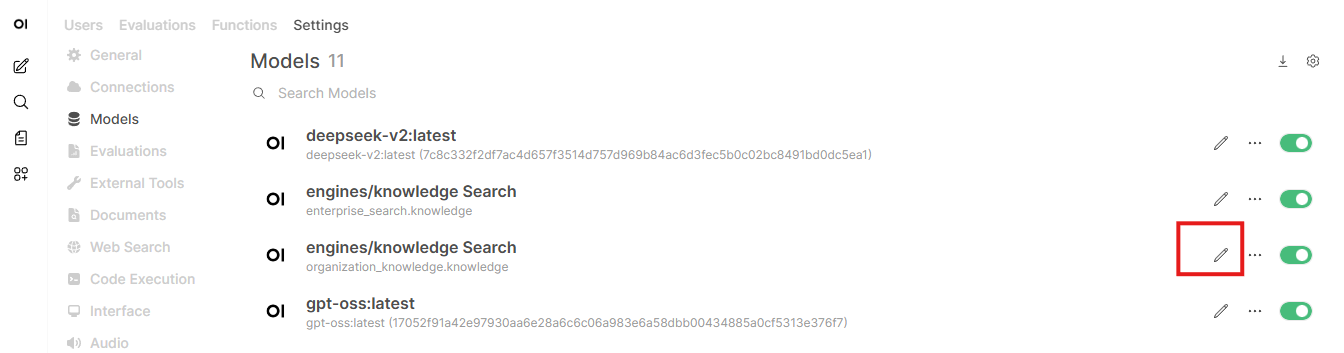
Click on access
-
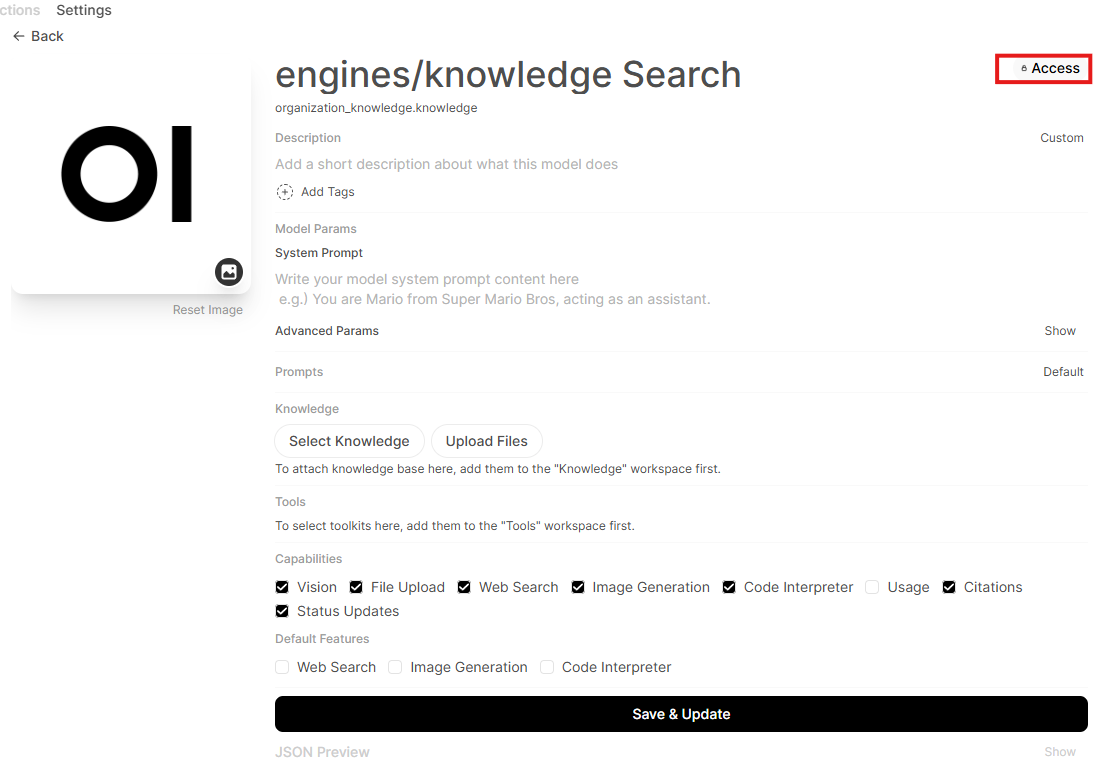
Adjust the accessibility to the user group which should use this model

Close the dialog and click on save & update
Afterwards the permitted users can use this model